GPT Image 2.6 AI Image & GIF Generator
Create with GPT Image 2.6 Flare or Sunburst on aivideoweb.com. Turn a prompt into a still image or a 1K GIF, or edit using up to 16 reference images with PNG, JPEG or WebP output.
GPT Image 2.6 Animation Examples
Explore two groups of GPT Image 2.6 examples: animated character reactions and an owl sketch with its animated result. In this form, GIF generation uses text prompts only; reference images are supported for still-image editing.
Anime Reactions
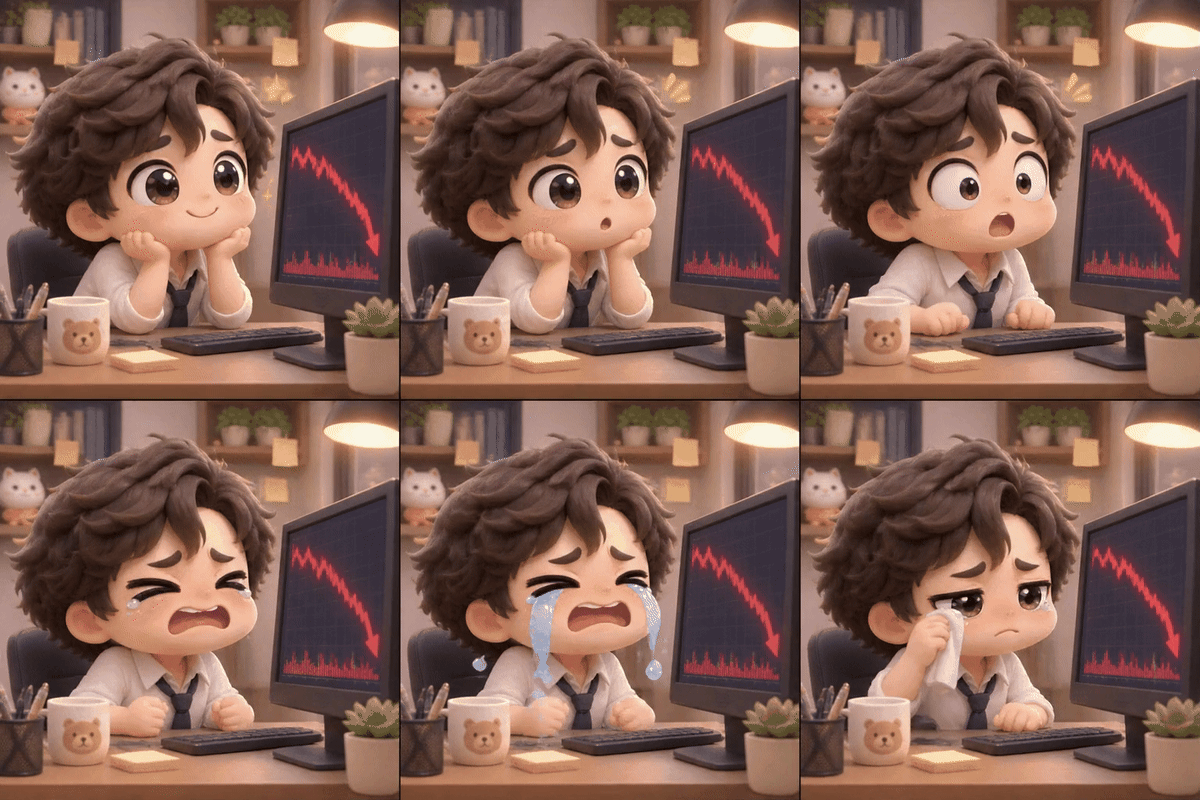
An office worker reacts as the stock chart drops.
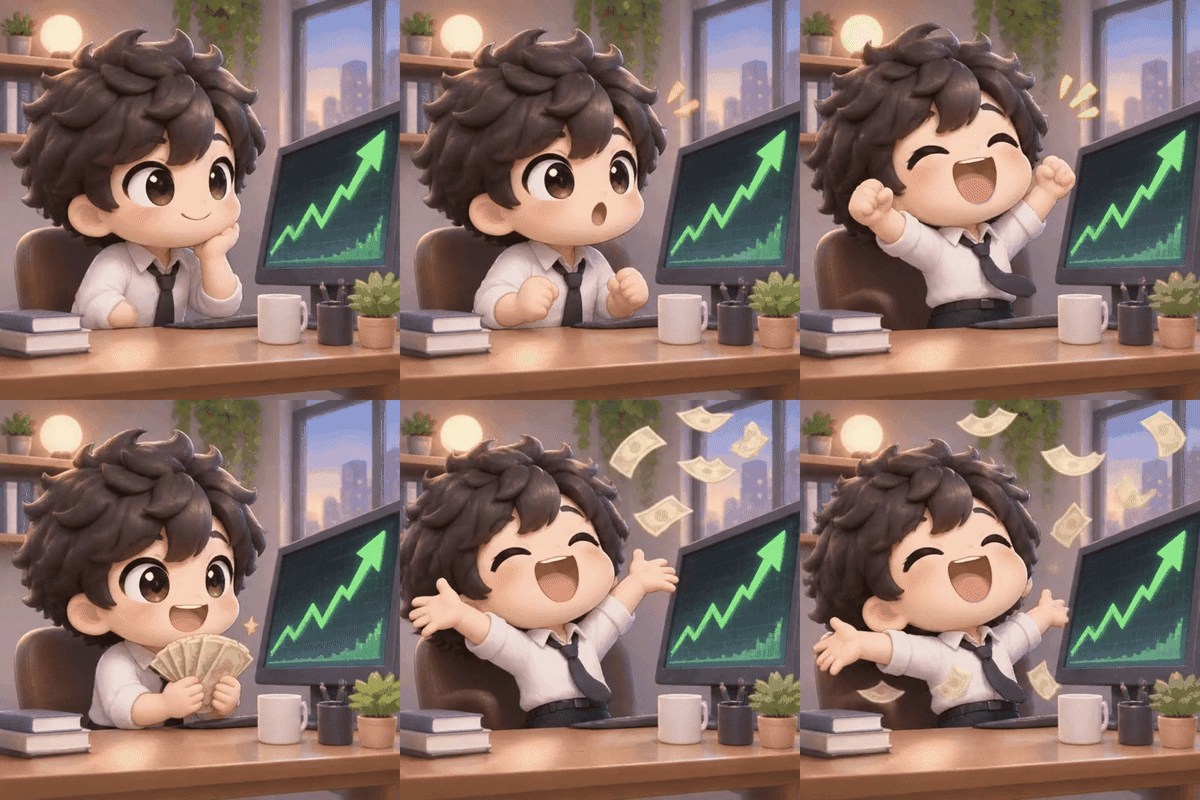
The same worker celebrates as the stock chart climbs.
Owl Sketch and Animation
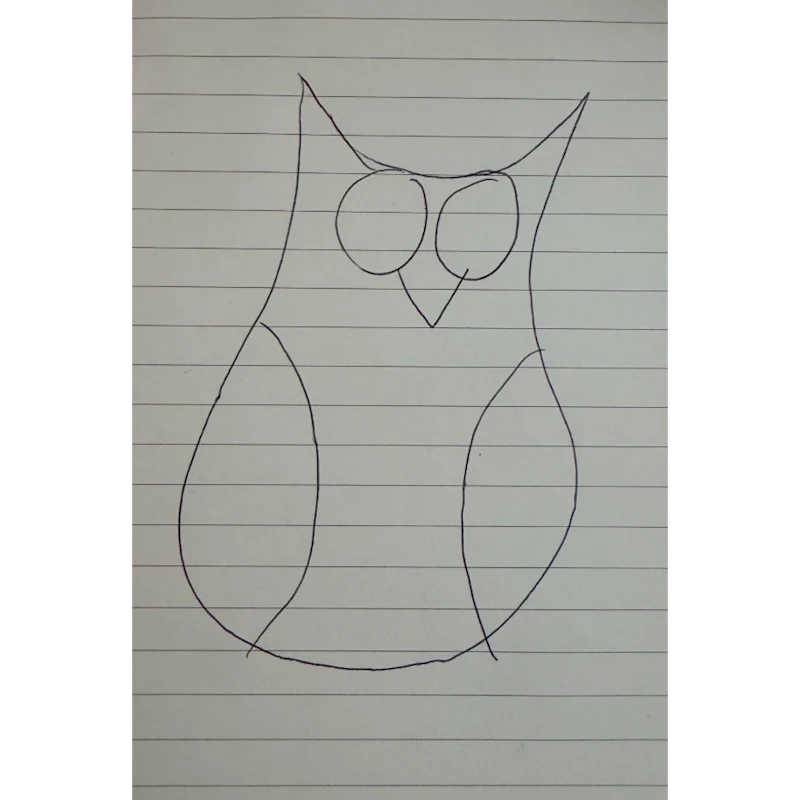
An owl drawn in pen on lined paper.
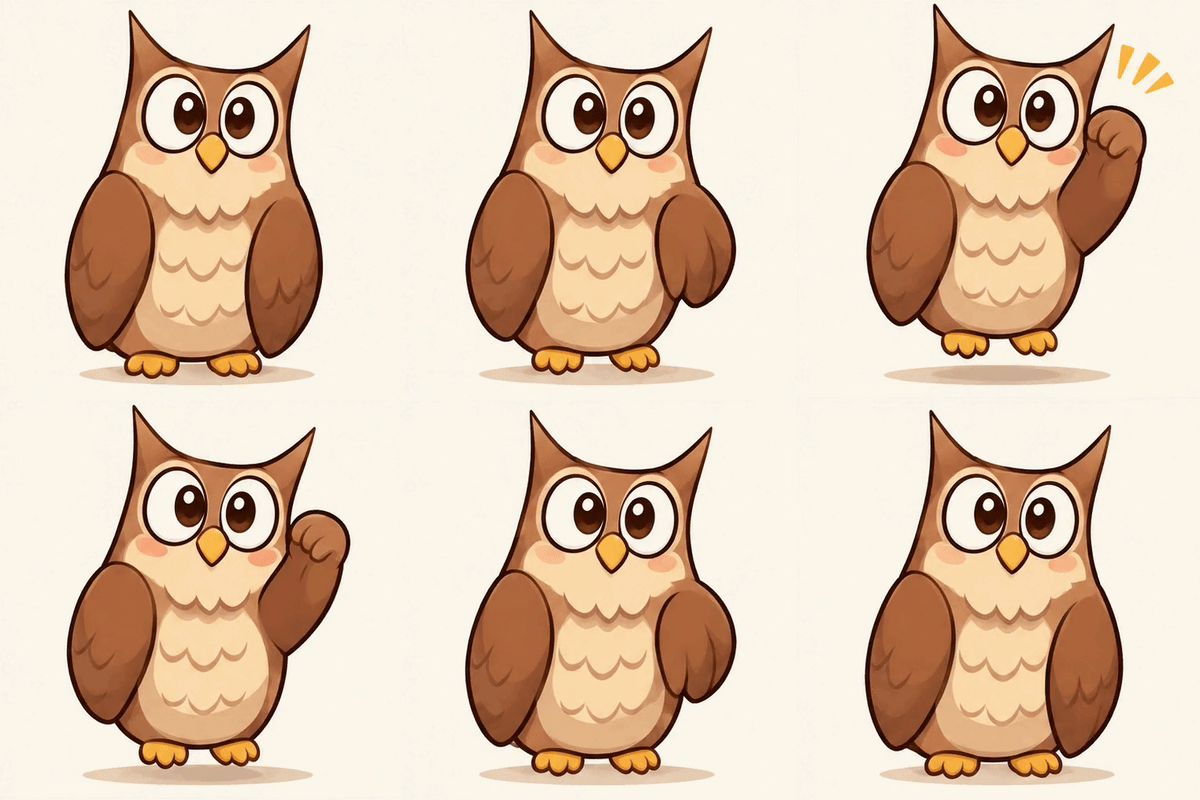
A hand-drawn owl comes to life in a looping animation.
Create, Edit and Animate with GPT Image 2.6
Choose Flare or Sunburst, then set the input, image quality, resolution and output format for your task.
Generate from Text or Edit with References
Describe a new image or add up to 16 reference images with instructions for your edit. Both GPT Image 2.6 Flare and Sunburst support these workflows.
Create GIFs from a Text Prompt
Choose GIF and describe your subject and its movement. GIF generation runs at 1K without reference images; use PNG, JPEG or WebP when editing uploaded images.
Choose Five Quality Levels and Up to 4K
Select Low, Medium, High, Xhigh or Max quality. Still images support 1K, 2K and 4K resolution, with ten aspect ratios for square, portrait and landscape compositions.
Select the Output Format Before Generating
Choose PNG, JPEG or WebP for still images, or GIF for prompt-based animation. Review the displayed credits after changing quality, resolution, format or reference images.
Keep Your GPT Image 2.6 Settings in View
Match the output to your creative brief, then review the selected model, settings and credits before generating.
Resolve Framing Questions with a Draft
The form starts with GPT Image 2.6 Flare, Low quality, 1K resolution, a 1:1 aspect ratio and PNG output. Adjust these settings before submitting your request.
Communicate the Intended Visual Direction
Pair your generated concept with its prompt when discussing the camera angle or setting with collaborators.
Separate Image Review into Clear Decisions
Check the overall layout first, then inspect details and revise the prompt around the most important issue.
Review Generation Settings Up Front
The current form uses GPT Image 2.6 Flare by default. Confirm the model, ratio, and resolution before requesting a visual.
Plan Covers, Key Frames, and Story Concepts Around GPT Image 2.6
Describe each intended still image in the available generator, then evaluate how it supports your wider creative project.
Draft a Video Cover Image
Specify a prominent subject and a simple background to explore a cover composition, adding final typography in your layout tool.
Visualize an Opening Scene
Describe the opening location, camera position, and lighting to generate a still concept for discussion.
Explore a Campaign Key Visual
Build an image prompt around a recognizable subject and a clear mood to develop a campaign art direction.
Prepare a Pitch Presentation Image
Describe one scene that communicates the proposed story or setting, then review the generated visual for your presentation.
How to Use GPT Image 2.6 on aivideoweb.com
Start with a prompt, choose your output settings, and review the result before refining your next request.